There’s a category of self-hosting projects where the moment you put it on a public VPS, you’ve increased your attack surface in ways you didn’t quite plan for. OpenClaw is squarely in that category. It’s an AI agent with file system access, a browser it can drive, your API keys, your messaging tokens, and depending on how you wire it up, the keys to several of your accounts. Putting that behind nothing more than a username and password feels wrong. Putting it behind a username, a password, and a wide-open port 443 to the entire internet feels only slightly less wrong.
So I built the version I actually wanted. A VPS that looks dead from the public internet. SSH that only works from devices I’ve explicitly added to my own private network. The OpenClaw web UI reachable from my laptop and phone, and from absolutely nothing else. Real, browser-trusted HTTPS certificates that renew themselves. No port forwarding, no DNS records pointing to the box, no public exposure of anything.
This post is the full walkthrough. If you want OpenClaw running with the kind of security posture you’d actually be comfortable leaving up while you sleep, this is the guide.
The model of what we’re building
Before any setup, it helps to understand the shape of what we’re going to end up with, because every decision below makes more sense when you can see the whole picture.
The VPS exists on the public internet. It has a public IP, like every VPS. Normally that means anyone in the world can attempt to talk to it. We’re going to make that not be the case. We do that with three layers of defense, which together produce a server that simply doesn’t respond to packets coming from anywhere on the internet other than our own devices.
Layer one is the cloud provider’s network firewall, applied at Hostinger’s edge before traffic even reaches our box. This drops everything that isn’t our private network’s traffic.
Layer two is the operating system’s firewall on the VPS itself, doing the same thing one hop later, in case anything sneaks past layer one or our future self forgets to close a port.
Layer three is the private mesh network itself. Tailscale, in our case. Tailscale gives every device a stable IP in the 100.x.x.x range, accessible only to other devices we’ve added to our account. The VPS, my laptop, my phone, all on the same private network. They can talk to each other through encrypted tunnels. The public internet sees none of it.
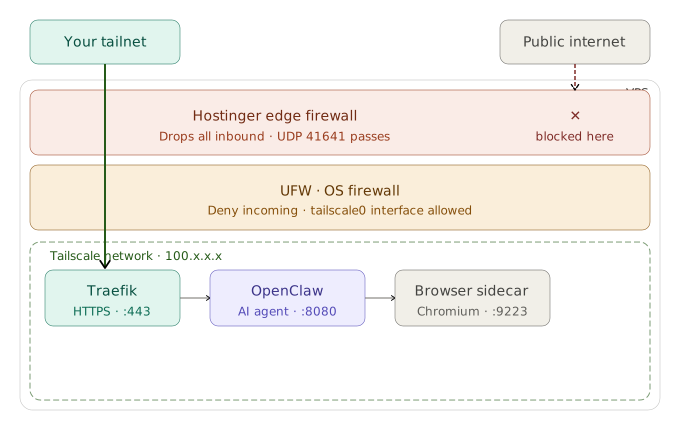
Inside the VPS, OpenClaw runs in Docker. In front of OpenClaw, we run Traefik as a reverse proxy that handles HTTPS termination. Traefik gets its TLS certificate from Tailscale itself, which issues real Let’s Encrypt certificates for hostnames in the *.ts.net namespace. No DNS provider, no domain to buy, no certbot to wrestle with, and the cert refreshes automatically.
The end result is something I can reach at https://my-vps-name.tail-something.ts.net from any device that has Tailscale running, with a perfect green padlock in the browser and no popup warnings. From anywhere else, the URL doesn’t even resolve.
What you need before starting
You need a VPS. I used Hostinger because I already had a small box there and their Docker manager UI is genuinely pleasant to use, but the same setup works on any provider with a basic Linux VPS. Ubuntu 24.04 is what I’m running. Two CPU cores and 4 GB of RAM is comfortable for a single user. OpenClaw with the browser sidecar runs around 1.5 GB of RAM at idle.
You need a Tailscale account. Sign up at tailscale.com. Free for personal use up to 100 devices, which is far more than any of this requires. If you’ve never used Tailscale before, the short version is that it’s a private network you control with one-line installs on any device, and it Just Works in the way that actual networking rarely Just Works.
You need a way to run an OAuth flow against your ChatGPT account if you want to use your subscription instead of paying per-token. I’ll cover this briefly at the end but it’s documented in detail in the post I wrote on getting OpenClaw to run on a ChatGPT subscription.
That’s it. No domain to buy, no DNS provider to configure, no API keys to wire up beyond whatever you put inside OpenClaw itself.
Step 1: Tailscale account and a clean tailnet
Set up Tailscale before you touch the VPS. Logically, the VPS is going to join an already-existing private network, not the other way around.
Sign up at login.tailscale.com/start with whatever identity provider you’ll have long-term access to. Google or GitHub work fine. The account becomes the owner of your “tailnet,” which is what Tailscale calls a private network.
Once you’re in the admin console, take note of the tailnet name in the top left corner. It looks something like tail-abcd12.ts.net. That suffix is going to show up in every URL we use. Write it down.
Two settings need to be turned on for HTTPS to work later. In the admin console, go to DNS. Make sure MagicDNS is enabled. Below that, find the HTTPS Certificates section and click Enable HTTPS. Without this, the certificate fetch in step 5 will fail with a confusing error.
Now install Tailscale on whatever device you’ll use to connect to the VPS. Laptop, phone, or both. Install it from tailscale.com/download, sign in with the same account. The device should appear in the admin console with a 100.x.x.x IP. Run tailscale status from a terminal on that device to confirm.
You now have a private network with one device on it. We’re going to add the VPS as the second.
Step 2: VPS initial setup
SSH into the VPS one last time over the public internet. After this, public SSH stops working forever, so don’t get cute about closing the session prematurely.
ssh root@your-vps-public-ip
Update everything.
apt update && apt upgrade -y
Create a non-root user. The reason is partly hygiene and partly that Tailscale SSH (which we’ll set up in a moment) authenticates by Tailscale identity, but the resulting shell is still a regular Linux user, and you don’t want that to be root by default.
adduser claw
usermod -aG sudo claw
usermod -aG docker claw
The docker group lets that user run Docker without sudo, which makes daily operations less painful.
Install Tailscale on the VPS.
curl -fsSL https://tailscale.com/install.sh | sh
Bring it up with two flags worth understanding.
tailscale up --ssh --hostname=openclaw-vps
The --ssh flag tells the Tailscale daemon to handle SSH on this machine. Tailscale SSH replaces traditional SSH for users on your tailnet. You don’t need to manage SSH keys, you don’t need a password, and the Tailscale ACL system controls who can SSH where. It’s ten times less fragile than traditional SSH key management, and it ties access to your Tailscale identity rather than to which laptop you happen to be holding.
The --hostname flag picks a stable name for the VPS in your tailnet. Whatever you set here, plus your tailnet suffix, becomes your URL later. So openclaw-vps becomes openclaw-vps.tail-abcd12.ts.net.
When you run tailscale up, it prints a URL. Open it in a browser, log in with your Tailscale account, and the VPS will appear in your admin console.
Confirm it’s online.
tailscale status
tailscale ip -4
The tailscale ip -4 command prints the VPS’s Tailscale IP, something like 100.x.y.z. Write this down. You’ll need it in step 3 and step 6.
Test Tailscale SSH from your laptop. Tailscale must be running on the laptop.
tailscale ssh claw@openclaw-vps
This should drop you into a shell on the VPS as the claw user, with no password prompt, no key prompt, nothing. If this works, you’re authenticated against your Tailscale identity, and we can lock down the rest. If it doesn’t work, stop here and figure out why before locking anything down. The next step will close traditional SSH, and if Tailscale SSH isn’t proven working, you will lock yourself out.
Step 3: Two layers of firewall
Now we make the VPS dark to the public internet. Two firewalls, applied independently.
The first one runs on the VPS itself, using ufw (the Uncomplicated Firewall). The pattern is to deny everything inbound by default, then allow only Tailscale.
From your Tailscale SSH session, become root for the firewall commands.
sudo -i
ufw --force reset
ufw default deny incoming
ufw default allow outgoing
ufw allow in on tailscale0
ufw allow 41641/udp
ufw --force enable
ufw status verbose
A few of those need explaining. ufw default deny incoming says that if no rule explicitly allows a packet, drop it. ufw default allow outgoing says we can still make outbound connections, which we need for things like Docker pulls and Tailscale’s own coordination traffic. ufw allow in on tailscale0 says any traffic on the tailscale0 interface (which is what Tailscale creates) is allowed, regardless of port. This is what keeps your shell session alive through this command. ufw allow 41641/udp opens the port Tailscale uses to negotiate direct peer-to-peer connections. Without this, Tailscale still works through its DERP relay servers, just slower.
ufw --force enable activates everything. The --force flag skips the “are you sure” prompt. Your existing Tailscale SSH session won’t drop because UFW doesn’t kill established connections, only new ones.
Run ufw status verbose to confirm. You should see Status: active, the default policy as deny (incoming), allow (outgoing), and the tailscale0 allow rule listed.
exit out of the root shell back to claw.
The second firewall is at Hostinger’s network edge. Their panel has a firewall section under your VPS settings. The model varies slightly by provider, but the goal is the same: deny all inbound traffic at the network level, before it even reaches your VPS.
In Hostinger’s case, you build an explicit allowlist. Add one rule:
| Action | Protocol | Port | Source |
|---|---|---|---|
| Accept | UDP | 41641 | Anywhere |
Then add a final rule:
| Action | Protocol | Port | Source |
|---|---|---|---|
| Drop | Any | Any | Any |
That second rule catches everything else, which is what we want. Click Synchronize so the rules actually apply.
You now have two firewall layers. Even if I deleted my UFW rules tomorrow by accident, Hostinger’s edge would still drop the traffic. Even if Hostinger had an outage in their firewall plane, my UFW rules would catch it.
Test it. From a device that’s not on your tailnet (turn Tailscale off on your phone, easiest), try to reach the VPS:
ssh root@your-vps-public-ip
nc -zv -w 5 your-vps-public-ip 22
nc -zv -w 5 your-vps-public-ip 80
nc -zv -w 5 your-vps-public-ip 443
All of these should hang and time out. Not “connection refused,” not “permission denied,” just silence. That’s the firewall dropping packets. From the public internet’s perspective, your server simply does not respond.
Turn Tailscale back on, and verify tailscale ssh claw@openclaw-vps still works. It will.
Step 4: The shape of the Docker setup
Before we deploy anything, it’s worth understanding what we’re about to deploy and why.
OpenClaw runs inside a container in our setup. The image we use is coollabsio/openclaw:latest, which is the actively maintained community build that ships with sensible defaults for VPS deployments and bundles an nginx layer in front of the gateway for things like reverse-proxy compatibility and basic auth wiring. There’s also an official upstream image at openclaw/openclaw, but it’s a more bare-bones runtime: no nginx, no entrypoint script that auto-configures things from environment variables, no opinionated defaults. If you want to assemble those pieces yourself it’s a fine choice, but for a single-user VPS deployment where you’d rather not rebuild infrastructure that someone else has already battle-tested, the coollabsio image saves you a few hours of yak-shaving. That’s the one I’m going with for the rest of this guide.
A consequence of using the coollabsio image is that OpenClaw needs a second container running alongside it: a headless browser sidecar. The image’s bundled nginx config proxies a /browser/ path to a service it expects to find at the hostname browser, and if that service doesn’t exist when the container starts, nginx refuses to load and the whole stack restart-loops. So even if you never plan to use OpenClaw’s browser automation features, you need the sidecar present for the main container to start cleanly. The browser sidecar runs a real Chromium instance, and OpenClaw drives it over Chrome DevTools Protocol on an internal port. Don’t try to skip it. It’s about 1 GB of disk and a few hundred MB of RAM at idle, which on any VPS large enough to run OpenClaw at all is a rounding error.
In front of those two containers, we run Traefik. Traefik is a reverse proxy. It listens on port 443, terminates TLS using a certificate we’ll fetch in the next step, and routes incoming HTTPS requests to whichever container can handle them based on the request’s hostname. Right now we’ll have one rule, routing the OpenClaw URL to OpenClaw. If you ever add a second self-hosted service to this VPS later, you add labels to that service and Traefik picks it up automatically. No reconfiguring Traefik.
The piece that ties this together is a key decision: Traefik’s listening port should be bound only to the Tailscale interface, not to all interfaces. Even if our firewalls failed open tomorrow, Traefik would not actually accept connections from the public IP. It physically wouldn’t be listening there.
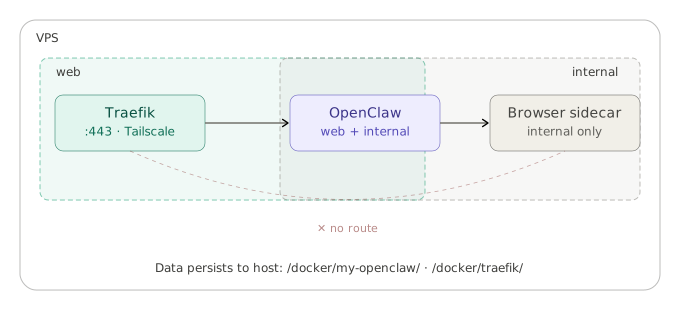
The data shape:
/docker/traefik/for Traefik’s compose file, certificates, and dynamic config./docker/my-openclaw/for OpenClaw’s compose file, the agent’s data directory, the workspace where files live, and the browser sidecar’s profile data.
Both directories are bind-mounted into their respective containers. This means anything OpenClaw writes ends up directly on the host filesystem, where it’s easy to back up, easy to inspect, and easy to migrate if the VPS ever moves. The tradeoff is that file ownership ends up reflecting whichever user the container runs as (root, in this case), which means reading those files from your claw shell sometimes needs sudo. I think that tradeoff is worth it for personal use. You probably do too.
Step 5: Fetch the TLS certificate from Tailscale
The cleanest part of this whole setup. Tailscale issues real Let’s Encrypt certificates for any *.ts.net hostname on your tailnet. It does the DNS-01 challenge on your behalf, you don’t need to own a domain, you don’t need API credentials with any DNS provider, and you don’t need port 80 reachable from the internet (which is good, because in our setup it isn’t).
From the VPS, as claw:
sudo mkdir -p /docker/traefik/certs
sudo mkdir -p /docker/traefik/dynamic
sudo chown claw:claw /docker/traefik/certs /docker/traefik/dynamic
cd /docker/traefik/certs
sudo tailscale cert openclaw-vps.tail-abcd12.ts.net
Replace the hostname with your actual one. The tailscale cert command produces two files: a .crt and a .key, both named after your hostname. Tighten the permissions:
sudo chown claw:claw openclaw-vps.tail-abcd12.ts.net.*
sudo chmod 644 openclaw-vps.tail-abcd12.ts.net.crt
sudo chmod 600 openclaw-vps.tail-abcd12.ts.net.key
Verify the cert is real:
openssl x509 -in openclaw-vps.tail-abcd12.ts.net.crt -noout -subject -issuer -dates
The output should show your hostname as the subject, Let's Encrypt as the issuer, and a notAfter date roughly 90 days out. Real, browser-trusted, no self-signed weirdness.
We’ll wire renewal up at the end. For now, we have a working cert.
Create one more file, the dynamic config that tells Traefik which cert to use:
cat > /docker/traefik/dynamic/tls.yml << 'EOF'
tls:
  certificates:
    - certFile: /certs/openclaw-vps.tail-abcd12.ts.net.crt
      keyFile: /certs/openclaw-vps.tail-abcd12.ts.net.key
  stores:
    default:
      defaultCertificate:
        certFile: /certs/openclaw-vps.tail-abcd12.ts.net.crt
        keyFile: /certs/openclaw-vps.tail-abcd12.ts.net.key
EOF
Again, replace the hostname with yours. This file says “for any HTTPS request, present this cert.” Traefik will read it from disk on startup and reload it whenever it changes.
Step 6: The Traefik compose file
Create the directory structure for OpenClaw’s data while we’re at it:
sudo mkdir -p /docker/my-openclaw/data
sudo mkdir -p /docker/my-openclaw/workspace
sudo mkdir -p /docker/my-openclaw/browser-data
sudo chown claw:claw /docker/my-openclaw/data /docker/my-openclaw/workspace /docker/my-openclaw/browser-data
And create a Docker network that both stacks will share, so Traefik can find OpenClaw via Docker DNS:
docker network create web
Now Traefik. The compose file looks like this:
services:
  traefik:
    image: traefik:latest
    restart: unless-stopped
    ports:
      - "100.x.y.z:443:443"
    command:
      - --api.dashboard=false
      - --api.insecure=false
      - --log.level=INFO
      - --providers.docker=true
      - --providers.docker.exposedbydefault=false
      - --providers.file.directory=/etc/traefik/dynamic
      - --providers.file.watch=true
      - --entrypoints.websecure.address=:443
    volumes:
      - /var/run/docker.sock:/var/run/docker.sock:ro
      - ./certs:/certs:ro
      - ./dynamic:/etc/traefik/dynamic:ro
    networks:
      - web

networks:
  web:
    external: true
Replace 100.x.y.z with your VPS’s Tailscale IP, the one you wrote down in step 2. The port mapping syntax 100.x.y.z:443:443 is the critical line. It binds Traefik’s port 443 to that specific IP, not to all interfaces. Even if anything else were misconfigured, Traefik would not be reachable from the public IP because it’s not listening there.
A few of the other lines are worth understanding. providers.docker=true tells Traefik to watch the Docker socket and pick up configuration from container labels. providers.docker.exposedbydefault=false says nothing is exposed unless the container explicitly opts in, which is the safe default. providers.file.directory points to the dynamic config we created, which tells Traefik about the cert. entrypoints.websecure.address=:443 defines the HTTPS entry point. We don’t define an HTTP entry point at all, because we don’t want anything on port 80.
If you’re using Hostinger’s Docker manager, paste this YAML into a new project. If you’re managing Docker yourself with docker compose, save it as /docker/traefik/docker-compose.yml.
Bring it up.
cd /docker/traefik
docker compose up -d
docker compose logs -f
You’re looking for clean startup, no errors, the Traefik banner, “starting provider” messages, and an “http server listening” or equivalent. Ctrl+C to exit logs.
Test that TLS works. From your laptop, with Tailscale on:
curl -vI https://openclaw-vps.tail-abcd12.ts.net/
You should see TLS 1.3 handshake succeed, the certificate’s subject match your hostname, the issuer be Let’s Encrypt, and the response be HTTP/2 404. The 404 is correct: Traefik is up, serving valid TLS, but has no service routed yet. We’re about to fix that.
If the TLS handshake fails, stop here and debug. Don’t proceed until your laptop’s browser shows a green padlock when you visit https://openclaw-vps.tail-abcd12.ts.net/.
Step 7: The OpenClaw compose file
This is the one that actually runs OpenClaw and the browser sidecar.
services:
  openclaw:
    image: coollabsio/openclaw:latest
    restart: unless-stopped
    volumes:
      - ./data:/data
      - ./workspace:/data/workspace
    environment:
      - GEMINI_API_KEY=${GEMINI_API_KEY}
      - OPENCLAW_GATEWAY_TOKEN=${OPENCLAW_GATEWAY_TOKEN}
      - OPENCLAW_ALLOWED_ORIGINS=${OPENCLAW_ALLOWED_ORIGINS}
      - BROWSER_CDP_URL=http://browser:9223
      - BROWSER_DEFAULT_PROFILE=openclaw
      - BROWSER_EVALUATE_ENABLED=true
    depends_on:
      - browser
    networks:
      - web
      - internal
    labels:
      - traefik.enable=true
      - traefik.docker.network=web
      - traefik.http.routers.openclaw.rule=Host(`openclaw-vps.tail-abcd12.ts.net`)
      - traefik.http.routers.openclaw.entrypoints=websecure
      - traefik.http.routers.openclaw.tls=true
      - traefik.http.services.openclaw.loadbalancer.server.port=8080

  browser:
    image: ghcr.io/coollabsio/openclaw-browser:latest
    restart: unless-stopped
    volumes:
      - ./browser-data:/config
    networks:
      - internal

networks:
  web:
    external: true
  internal:
    driver: bridge
Replace the hostname. Several pieces are worth understanding here.
The volumes lines are bind mounts. ./data:/data means whatever the container writes to /data ends up in /docker/my-openclaw/data on the host. This is where OpenClaw stores its config, its OAuth profiles, its memory, its paired devices, everything. Backing up this directory is backing up OpenClaw.
The environment block. OPENCLAW_GATEWAY_TOKEN is a secret you generate with openssl rand -hex 32. It’s the token clients use to authenticate against the gateway. OPENCLAW_ALLOWED_ORIGINS is the URL where OpenClaw expects to be accessed. Without this set correctly, the chat UI’s WebSocket connections get rejected with a CORS error. Set it to your full HTTPS URL: https://openclaw-vps.tail-abcd12.ts.net. BROWSER_CDP_URL tells OpenClaw how to reach the browser sidecar. The hostname browser is the service name in this compose file, which Docker DNS resolves automatically on the internal network.
The two networks. The web network is shared with Traefik, so Traefik can reach OpenClaw. The internal network is private to OpenClaw and the browser sidecar. The browser sidecar isn’t on the web network at all, which means Traefik can’t see it, which means it can’t accidentally be exposed externally.
The labels are how Traefik finds OpenClaw. traefik.enable=true opts this container in. traefik.docker.network=web tells Traefik which network to use to reach OpenClaw, important because OpenClaw is on two networks and Traefik needs to know which one to use. The routers.openclaw.rule says “any HTTPS request to this hostname routes to this service.” The loadbalancer.server.port=8080 tells Traefik which internal port OpenClaw listens on.
If you’re using Hostinger’s Docker manager, paste this YAML and set the environment variables in their UI. The way Hostinger handles environment variables is straightforward: the ${VARIABLE} syntax in the YAML pulls from values you set in their env vars panel, which they store as a .env file on the host. Set your three vars there:
| Key | Value |
|---|---|
GEMINI_API_KEY | your Gemini API key, or empty if not using Gemini |
OPENCLAW_GATEWAY_TOKEN | output of openssl rand -hex 32 |
OPENCLAW_ALLOWED_ORIGINS | https://openclaw-vps.tail-abcd12.ts.net |
Save and deploy. Hostinger pulls the images (the browser sidecar is around 1 GB, takes a minute), creates the containers, and starts them.
Watch logs while it boots:
docker logs my-openclaw-openclaw-1 -f
First boot is slow. OpenClaw’s entrypoint runs a doctor self-check, configures itself based on environment variables, sets up nginx, and starts the gateway. After about a minute you should see [gateway] ready. Ctrl+C out of logs.
Open the chat URL in your laptop’s browser:
https://openclaw-vps.tail-abcd12.ts.net/chat?session=main
You should see the OpenClaw gateway dashboard, with fields for the WebSocket URL (pre-filled), Gateway Token (paste your OPENCLAW_GATEWAY_TOKEN), and an optional password field (leave blank). Click Connect.
The first time, it’ll create a device pairing request that needs approval. The error message includes a UUID. Approve it from your terminal:
docker exec my-openclaw-openclaw-1 openclaw devices approve --latest
Refresh the browser, click Connect again, and you’re in. The chat UI loads, and you have a working OpenClaw running on a VPS that the public internet cannot see.
Step 8: Cert auto-renewal
Tailscale-issued certificates are valid for 90 days. We need them to renew automatically, or we’ll be locked out in three months.
sudo crontab -e
Pick nano if it asks. Add this single line at the bottom:
0 3 * * 0 tailscale cert --cert-file=/docker/traefik/certs/openclaw-vps.tail-abcd12.ts.net.crt --key-file=/docker/traefik/certs/openclaw-vps.tail-abcd12.ts.net.key openclaw-vps.tail-abcd12.ts.net && docker restart traefik-traefik-1
Replace the hostname. Save and exit. This runs every Sunday at 3 AM UTC, fetches a fresh cert (Tailscale only re-issues if the existing one is within 30 days of expiry, so the cron is harmless on weeks where renewal isn’t needed), and restarts Traefik to pick up the new cert. Verify the cron landed:
sudo crontab -l
You should see your line. Set yourself a calendar reminder for around the 80-day mark to verify the cert actually rotated. Cron jobs that fail silently are a real category of problem, and you only find out when your browser starts complaining.
Step 9: A note on authentication and OAuth
The setup above is complete from a network-security standpoint. The agent inside is reachable from your tailnet, and only your tailnet, with valid TLS, and the gateway requires its own token to connect. That’s enough security for a personal-use deployment.
What it doesn’t yet have is a model provider configured beyond whatever Gemini API key you supplied. To wire OpenClaw to use your ChatGPT subscription via Codex OAuth, that’s its own walkthrough, which I covered in my earlier post on running OpenClaw on a ChatGPT subscription. The short version: SSH into the VPS, exec into the container, run the auth login command with --method codex-browser-login, and follow the paste-back URL flow. The ChatGPT OAuth path is where you really want to end up if you have a Plus or Pro subscription, because it routes Codex usage against your subscription quota instead of per-token API billing.
The Browser Login flow is the one that works in headless containers. Don’t pick “Device Pairing” from the auth method menu, even though it sounds like the right choice for a server. The Browser Login flow opens a URL in your laptop, you sign in to ChatGPT, the OAuth redirect lands at a localhost:1455 URL that doesn’t exist on your laptop and shows a connection error, and you copy that full failing URL back into the terminal. The CLI parses out the authorization code from the URL and finishes the auth. It’s clean, it’s fast, and it’s the only flow that doesn’t get tangled up in TTY rendering issues.
What this gets you
A single page summary of the security posture is worth doing.
From the public internet, your VPS’s IP doesn’t respond to anything. SSH on 22, HTTP on 80, HTTPS on 443, all silent. Port scans return no open ports. The server is dark.
From your tailnet, you reach it at https://openclaw-vps.tail-abcd12.ts.net with a real Let’s Encrypt certificate that auto-renews. You SSH in with tailscale ssh claw@openclaw-vps, no keys, no passwords. The OpenClaw chat UI is gated by its own gateway token, and any new device that tries to connect requires explicit approval from a paired operator.
The agent’s data sits on disk at /docker/my-openclaw/, where it’s easy to back up. The cert sits at /docker/traefik/certs/, where it’s easy to inspect. The Traefik routing config is just labels on the OpenClaw container, easy to add to or modify. Adding a second self-hosted service later means writing a new compose file with the right labels. No changes to Traefik. No new firewall rules.
The security model has three independent layers. Hostinger’s edge firewall, UFW on the VPS, and Tailscale’s identity-based access control. If any one of those layers fails or gets misconfigured, the other two still hold. That’s defense in depth applied at the network layer, which is the kind of redundancy you want for a system that’s holding your API keys and your messaging credentials.
The things that are easy to forget
A few things to write down somewhere you’ll find them in a year, because I promise you’ll need them and won’t remember them.
The Tailscale state directory inside the OpenClaw container is /data/.openclaw. The CLI inside that container, when run via docker exec, defaults to looking at /root/.openclaw instead, unless you set OPENCLAW_STATE_DIR=/data/.openclaw in the environment first. Forgetting this means your CLI commands appear to succeed, but their effects vanish on the next restart because they wrote to the ephemeral location instead of the persistent one. This is the single sharpest edge I hit during setup.
The Hostinger Docker manager UI is the source of truth for compose YAML and environment variables. Editing the compose file directly on disk works for one boot, but Hostinger reconciles its state periodically and will overwrite your changes. Always edit through the UI.
The web Docker network is external: true in both compose files. If you ever delete and recreate the network, both stacks need to be brought down and back up. If the network is missing when a stack tries to come up, the deploy fails with a confusing error.
OpenClaw’s healthcheck inside Docker takes a couple of minutes to flip from “starting” to “healthy” on initial boot. The container can show “(unhealthy)” while the application is actually fine. Trust the logs, not the healthcheck label, during the first minute or two after a restart.
Backups are not optional. The data directory at /docker/my-openclaw/data/ contains your OAuth profiles, your paired devices, your conversation history, and your config. If the VPS dies, this is gone unless you’ve copied it elsewhere. Hostinger has VPS-level backups available in their panel. Turn them on. For a couple of dollars a month, you get full disk snapshots, which is the simplest possible safety net.
A few choices I deliberately made differently
A handful of decisions in this setup are worth flagging because they go against what some guides recommend.
Bind mounts instead of named Docker volumes. The textbook advice is to use named volumes for production. For a single-user personal deployment on Linux, bind mounts have the same performance, the files are visible at predictable paths on the host, and backing them up is a tar command. The handful of permission issues you hit with bind mounts are one-time; the convenience of being able to cat a config file lasts forever.
Traefik bound to a specific IP instead of using firewall rules. You could leave Traefik listening on 0.0.0.0:443 and rely on the firewall layers to drop traffic from the wrong source. That works. Binding it to the Tailscale IP directly makes it physically impossible for Traefik to accept connections from the public IP, even if all firewall layers failed simultaneously. It’s a small belt-and-suspenders move that costs nothing and removes a class of failure modes.
No HTTP-to-HTTPS redirect, no port 80 listener at all. If you ever need to support HTTP-01 ACME challenges (for example if you switch off Tailscale’s certs and use your own domain), you’d add port 80 back. For our case, port 80 serves no purpose and would only widen the attack surface if our firewalls failed.
Skipping nginx basic auth on the OpenClaw container. The image supports adding HTTP basic auth via AUTH_USERNAME and AUTH_PASSWORD environment variables. I deliberately don’t set these. The reason: basic auth interacts badly with OpenClaw’s WebSocket-based chat UI, and the security value is redundant given that we already have Tailscale gating network access and the gateway token gating the agent itself. Adding basic auth on top makes the chat UI fail to load in mobile browsers, with no security benefit for this threat model.
Where this leaves you
If you’ve followed along, you have OpenClaw running on a VPS that’s invisible to the public internet, reachable only from devices on your private mesh network, with auto-renewing TLS, and with the data persisted to host directories you can back up trivially. Adding more self-hosted services later is a matter of writing one more compose file with the right Traefik labels.
The setup that feels paranoid the day you build it is the setup you’re glad you have a year later, the first time you read about a vulnerability in some random container image you forgot you were running. The blast radius for a compromised OpenClaw container, in this configuration, is contained to whatever was inside that container. The host stays fine. The other services stay fine. The network stays untouched. That’s what defense in depth buys you.
The whole setup, from a fresh Ubuntu install to a working chat UI in your browser, takes about an hour. Most of that hour is waiting for Docker to pull images. The actual configuration is maybe twenty minutes of typing.
If you only take one thing away from this post, take this: when self-hosting an AI agent that holds your credentials, do not put it on a public IP behind a username and password and call it secure. The modern way is to give your devices a private network, run the agent on that network, and let the public internet see nothing. Tailscale makes this practical for a single person on a free tier. The infrastructure to do this used to be enterprise-grade.
Everything in this post is current as of OpenClaw 2026.4.29.